
How to Use SUMIFS in Excel to Sum by Department and Status
Imagine that your office expense register contains several departments and payment statuses. You need the total paid by Administration, not the total of every expense. Excel's SUMIFS function lets you calculate that figure directly without sorting or deleting records.
Quick answer: use =SUMIFS(D2:D9,B2:B9,"Administration",C2:C9,"Paid") when amounts are in column D, departments in B and payment statuses in C.
1. Create a practice expense register
Copy the following tab-separated data into cell A1 of a blank Excel worksheet. The amounts are illustrative and use no particular currency.
Reference	Department	Status	Amount
E001	Administration	Paid	120
E002	IT	Paid	450
E003	Administration	Pending	80
E004	Operations	Paid	200
E005	Administration	Paid	60
E006	IT	Pending	150
E007	Operations	Pending	90
E008	Administration	Paid	240
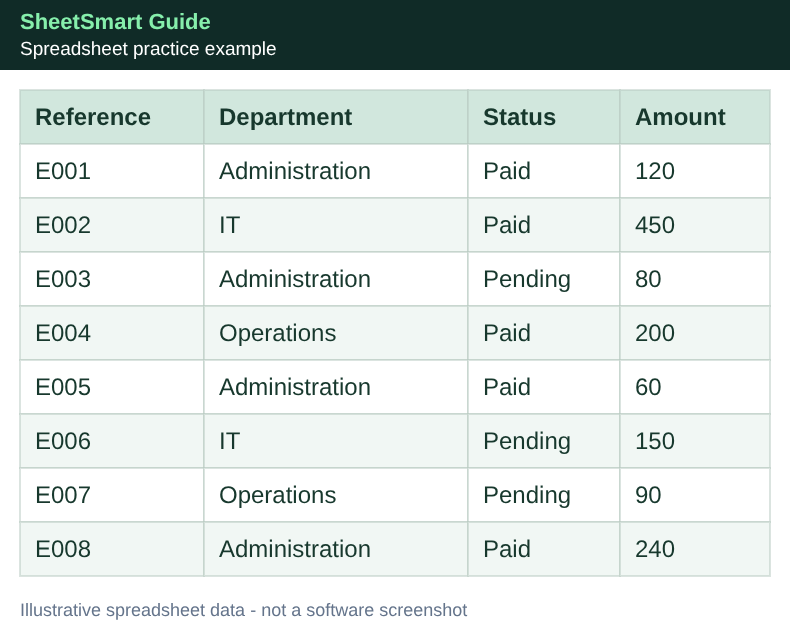
If the data appears in one column, select it and use Data > Text to Columns with Tab as the delimiter. Make sure the amounts in D2:D9 are numeric.
2. Understand the SUMIFS formula
=SUMIFS(sum_range,criteria_range1,criteria1,criteria_range2,criteria2)
Think of the formula as three instructions: identify the numbers to add, identify the column to check, and specify what qualifies. Each additional condition needs its own range and criterion. The rows must satisfy all the conditions to contribute to the result.
3. Sum expenses by department and payment status
Enter this formula in F2:
=SUMIFS(D2:D9,B2:B9,"Administration",C2:C9,"Paid")
Expected result: 420. The qualifying amounts are 120, 60 and 240. The pending Administration expense of 80 is excluded, as are expenses from other departments.
4. Make a reusable summary with cell references
Instead of editing a formula whenever you want another department, create the following summary starting in F4.
Department	Status	Total
Administration	Paid
IT	Paid
Operations	Pending
Enter this formula in H5 and fill it down to H7:
=SUMIFS($D$2:$D$9,$B$2:$B$9,F5,$C$2:$C$9,G5)
| Department | Status | Expected total |
|---|---|---|
| Administration | Paid | 420 |
| IT | Paid | 450 |
| Operations | Pending | 90 |
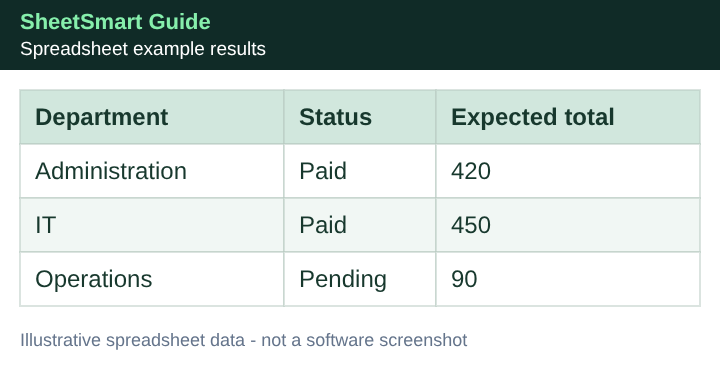
The dollar signs keep the source ranges fixed while the department and status references change on each summary row. You can replace the labels in F5:G7 without rewriting the formulas.
5. Add a minimum amount condition
To total only paid Administration expenses worth at least 100, use:
=SUMIFS(D2:D9,B2:B9,"Administration",C2:C9,"Paid",D2:D9,">=100")
Expected result: 360. The amounts 120 and 240 qualify, but 60 does not. To make the minimum adjustable, enter 100 in J2 and replace the last criterion with ">="&J2.
6. Use an Excel table for an expanding register
Fixed ranges stop at row 9. If you regularly add expense records, select A1:D9, choose Insert > Table, confirm the headers, and name the table Expenses using the table design controls. Then use:
=SUMIFS(Expenses[Amount],Expenses[Department],F5,Expenses[Status],G5)
When new records are added within the expanding table, the structured references include them. This avoids manually extending every summary formula.
7. Troubleshoot unexpected results
- Zero instead of a total: check spelling, extra spaces and whether the amount cells contain numbers rather than numeric-looking text.
- #VALUE! error: check that every criteria range has the same dimensions as the amount range.
- Formula rejected: some regional Excel settings require semicolons instead of commas between arguments.
- Unexpectedly low total: remember that multiple conditions in SUMIFS are combined with AND, not OR.
8. Check your totals independently
For this sample, all paid expenses total 1,070 and pending expenses total 320. You can calculate each with =SUMIFS(D2:D9,C2:C9,"Paid") and the equivalent Pending formula. Their sum, 1,390, should match =SUM(D2:D9). This reconciliation helps identify omitted or inconsistent status labels.
Frequently asked questions
What is the difference between SUMIF and SUMIFS?
SUMIF handles one condition; SUMIFS can handle one or several. Their argument order differs, so do not simply rename the function without checking its arguments.
How do I sum Paid or Pending expenses for Administration?
For these mutually exclusive statuses, add two SUMIFS formulas, one for each status. In this example the combined result is 500. If every Administration expense should qualify regardless of status, a single department condition is simpler.
Which Excel versions support these examples?
SUMIFS is available in Excel for Microsoft 365, Excel for the web and desktop releases including Excel 2016 through Excel 2024. Table creation and menu locations may differ by platform. The examples use standard English function names and comma separators.
Conclusion
Start with a small expense register, calculate a known total, and then replace fixed criteria with cell references. Once the summary reconciles with the original register, you have a reusable reporting tool for departments, projects or payment categories.
Further reading: Microsoft Support: SUMIFS function. All sample records are original illustrative data; the expected results are calculated from those records.


Comments
Post a Comment